The iPhone has no built-in way to put subtitles on a video you then post somewhere else. TikTok, Instagram and YouTube can caption a video inside their own apps, but those captions stay on that platform. If you want one file with the words on the picture, ready for any app, you need a captioning app.
I make one, CapiCap, and this is how it works. Most captioning apps send your video to a server to transcribe it. CapiCap runs OpenAI's Whisper speech model on the iPhone instead, so the video never leaves the phone.
Step by step
- Install CapiCap and open it once on Wi-Fi. On first launch it downloads its speech model, one time. After that it works in airplane mode.
- Tap Choose Video. Pick a clip from Photo Library or Files. You can also send a video to CapiCap from another app with the share button.
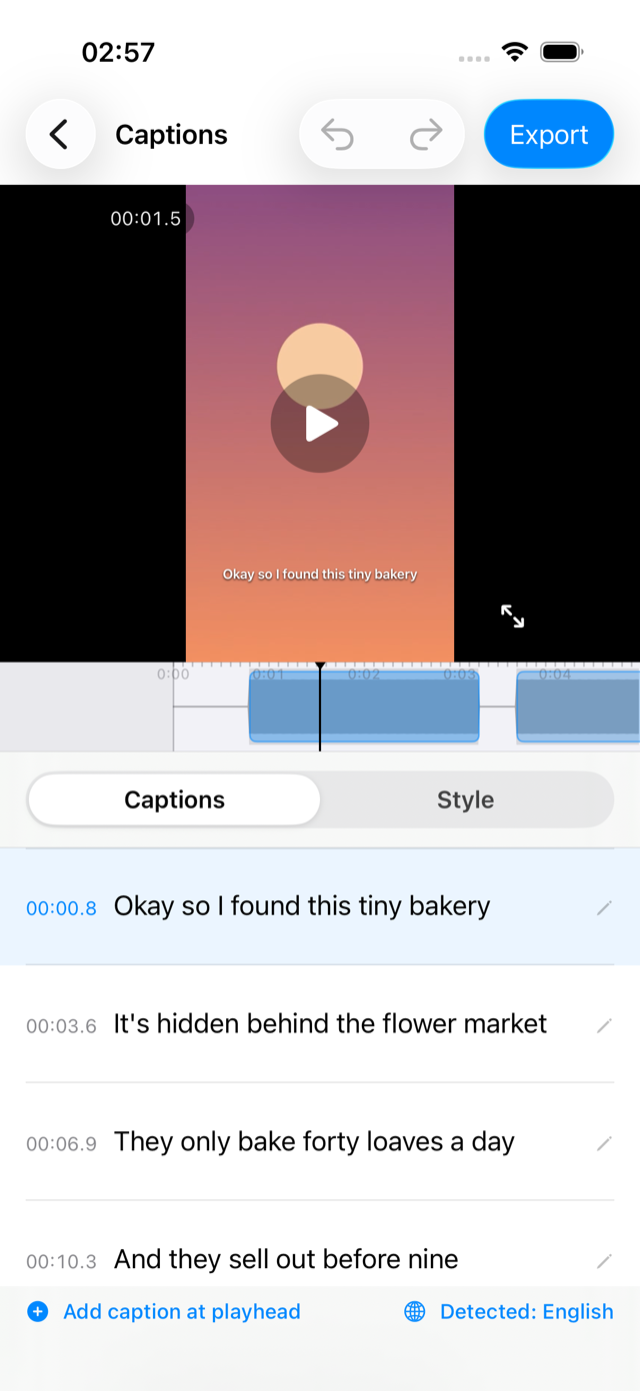
- Let it transcribe. CapiCap detects the spoken language (it knows 99+) and writes the captions on the phone, faster than real time on recent iPhones. If it picks the wrong language, tap the language and choose the right one.
- Fix the words, then pick a look. The transcript is a list of captions synced to the video. Tap one to correct it. You can split, merge, add or delete captions, and undo anything. Then open Style and tap one of the twelve looks, or set the font, colors, outline, shadow, motion and position yourself.
- Export. Tap Export, then Export video. When the render finishes, tap Save to Photos or Share…. The new video keeps the original resolution, frame rate and bitrate, 4K60 included, and the sound is copied as it was.
Burned in, or a separate file
Burned-in captions (people also say open captions, or hardcoded subtitles) are part of the picture. They show up wherever the video plays, which is what you want for Reels, TikTok, Shorts, Stories and messaging apps, where a lot of people watch with the sound off.
An .srt is a separate subtitle file that viewers can switch on and off. That's the one for YouTube, Vimeo or a video editor. In CapiCap, Export .srt is right under Export video, and I wrote up making an .srt file separately.
Which iPhones it runs on
Any iPhone with iOS 17 or later. It's fastest on iPhone 14 Pro and newer. CapiCap picks the speech model for your phone, so there's nothing to set up.
The same app runs on iPad and on Macs with Apple silicon, where the transcript sits beside the video. The Mac guide covers the differences.
A few things that help
Most mistakes come from loud music, people talking over each other and wind. A clip recorded close to the mic needs almost no fixing.
Language detection usually gets it right, but a clip that mixes languages or opens with music can fool it. If you know the language, pick it yourself.
The Lines setting decides how much text is on screen: one, two or three lines per caption. One line suits fast vertical videos, and captions still break at natural pauses and phrase boundaries. For Reels, TikTok and Shorts, the Clear of buttons position keeps captions away from the like and share buttons on the right. There's more on that in captions for Reels, TikTok and Shorts.
What it costs
CapiCap is free to download, and 3 exports every calendar month are free. Every feature and every look is there from the start, and there's no watermark, ad or account. If you caption more than 3 videos a month, Lifetime access is a one-time purchase ($9.99 in the US, priced locally elsewhere) that removes the limit. It isn't a subscription.
What it won't do
CapiCap is a captioning app, not a video editor. It doesn't trim, add music or put clips together on a timeline, it doesn't translate captions into another language, and it only runs on Apple devices. If you need any of that, a full editor like CapCut is the better tool. I wrote up how the two compare.