Burning in (also called hardcoding, or open captions) makes the words part of the picture, so they show wherever the video plays, sound on or off. On a Mac the usual ways to do it are a professional video editor, a command-line tool, or a website you upload the video to.
I make CapiCap, which needs none of those. It writes the captions with OpenAI's Whisper speech model, running on your Mac, and burns them in without the video leaving the computer. Below is how that works, and after it the Final Cut Pro and ffmpeg routes, for when you already have one of them.
What you need
A Mac with Apple silicon (M1 or later) and macOS 14 or later. Intel Macs can't run it. The first time you open CapiCap it needs an internet connection to download its speech model, Whisper Large v3 (630 MB). After that it works offline, and there's no account and nothing else to install.
On a Mac, it's the iPad app
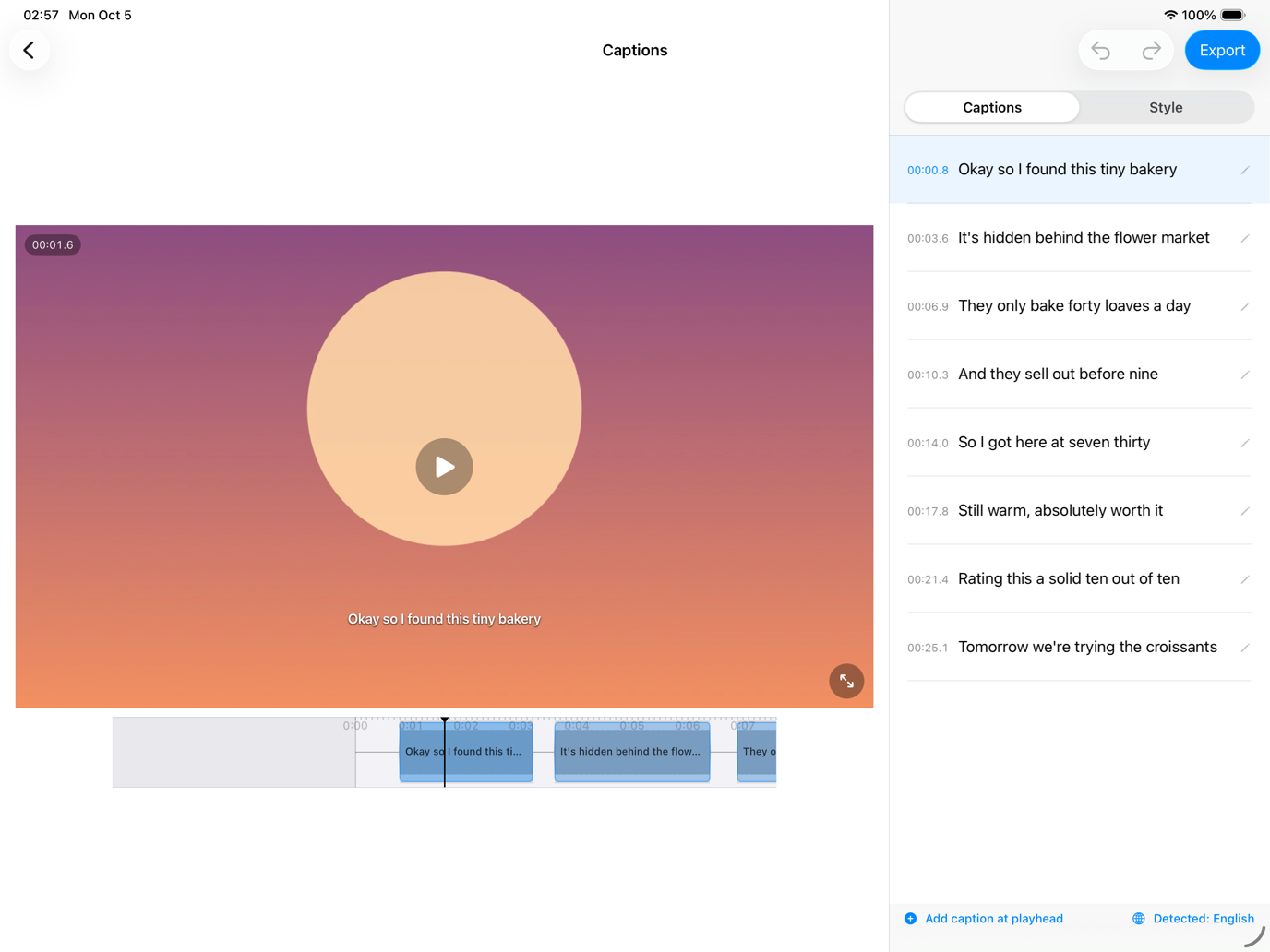
CapiCap is one app for iPhone, iPad and Mac. On the Mac it runs as a "Designed for iPad" app: the iPad version, in a resizable window. It isn't a native Mac app, so its buttons and lists look like the iPad's. What the Mac gets from that is the iPad's side-by-side editor, with the video on one side and the whole transcript beside it, so you can fix a word and see it on the picture without scrolling.
To find it, search for CapiCap in the App Store on your Mac. Apps made for iPhone and iPad show up under their own iPhone & iPad Apps tab in the results. It's the same listing as on iPhone and iPad, and Lifetime access belongs to your Apple Account, so if you bought it on your iPhone or iPad, the Mac is covered too.
Step by step
- Open CapiCap once while online. It downloads the model one time. The very first time, it also prepares the model for the Mac's Neural Engine. On an M1 Pro MacBook Pro that took 134 seconds, and later loads took about 2.
- Click Choose Video. Photo Library shows your Mac's Photos library. Files opens a file browser for a video saved in a folder.
- Let it transcribe. CapiCap detects the spoken language (it knows 99+) and writes the captions on the Mac. If it guesses wrong, click the language under the captions and pick the right one. Setting it yourself also helps when a clip mixes languages or opens with music.
- Fix the words and pick a style. Click any caption to correct it; split, merge, add or delete captions; undo anything. Then open Style and pick one of the twelve looks, or set the font, colors, outline, shadow, motion and position yourself. Burned-in captions can't be switched off later, so watch the video back full screen before you export.
- Click Export, then Export video. When the render finishes, Save to Photos puts the video in the Photos app on your Mac. To get a file in a folder, drag it out of Photos or export it from Photos' File menu. Share… sends it to another app instead.
If you need a subtitle file as well, Export .srt is on the same screen, under Export video. There's a separate guide to making an .srt file.
How long it takes
On an M1 Pro MacBook Pro, CapiCap transcribed 62 minutes of audio, in 25 clips, in about 11 minutes: roughly six times faster than real time. Your Mac and your audio will give different numbers. Burning the captions in takes its own time on top, depending on the video's length and resolution.
On iPhone and iPad CapiCap keeps the screen on while it renders. On a Mac it can't hold off sleep, so for a long video, keep the Mac awake until the export finishes.
What the exported video keeps
The original resolution, frame rate and bitrate, 4K60 included; nothing is downscaled. Every audio track is copied as it was, not re-encoded, and there's no watermark. The one exception is HDR: HDR videos export as SDR (Rec.709), so if you need HDR output, CapiCap isn't the right tool.
If you have Final Cut Pro, or know ffmpeg
Then you have other routes. They're also the way to go if you already have a subtitle file: CapiCap doesn't open an existing .srt, it writes its own captions from the speech.
Final Cut Pro imports .srt files as captions and can burn captions into the video when you share it. Since version 12.3 it can also write captions from the speech, but only in U.S. English.
ffmpeg, the free command-line tool, burns an existing subtitle file into a video with its subtitles filter:
ffmpeg -i in.mp4 \
-vf subtitles=in.srt out.mp4The filter only burns a file you already have; it doesn't write one. Make the .srt first, with CapiCap's Export .srt or the open-source Whisper tools on the command line. ffmpeg then re-encodes the video with its default settings unless you pass your own, and you style the captions with filter options rather than on a live preview.
What it won't do
CapiCap is a captioning app, not a video editor: there's no trimming, music or multi-clip timeline. It doesn't translate captions, and it doesn't run on Windows. For editing, Final Cut Pro is the better fit.