Plenty of people scroll short videos with the sound off, so the words on screen do the work the sound can't. TikTok, Instagram and YouTube can each make captions inside their own app, but those captions stay in that app. They don't come with the file when you post the same video somewhere else, and each app shows them its own way.
Burned-in captions, also called open captions, are part of the picture, so the same words in the same look show up everywhere, in reposts and messaging apps too. The trade-off is that nobody can turn them off, and a typo stays in the video, so read them through before you export.
I make CapiCap, which does this on an iPhone, iPad or Mac. Here's how I'd caption a vertical clip with it.
Step by step
- Choose the video. Tap Choose Video and pick the clip from Photos or Files, or share it in from another app. CapiCap transcribes it on the device and works out the language. If it guesses wrong, tap the language under the caption list and pick the right one.
- Fix the words. In the Captions tab, tap a caption to correct it. You can split, merge, add or delete captions, and undo anything. On a short video every word is on screen for a moment, so one read-through is worth it.
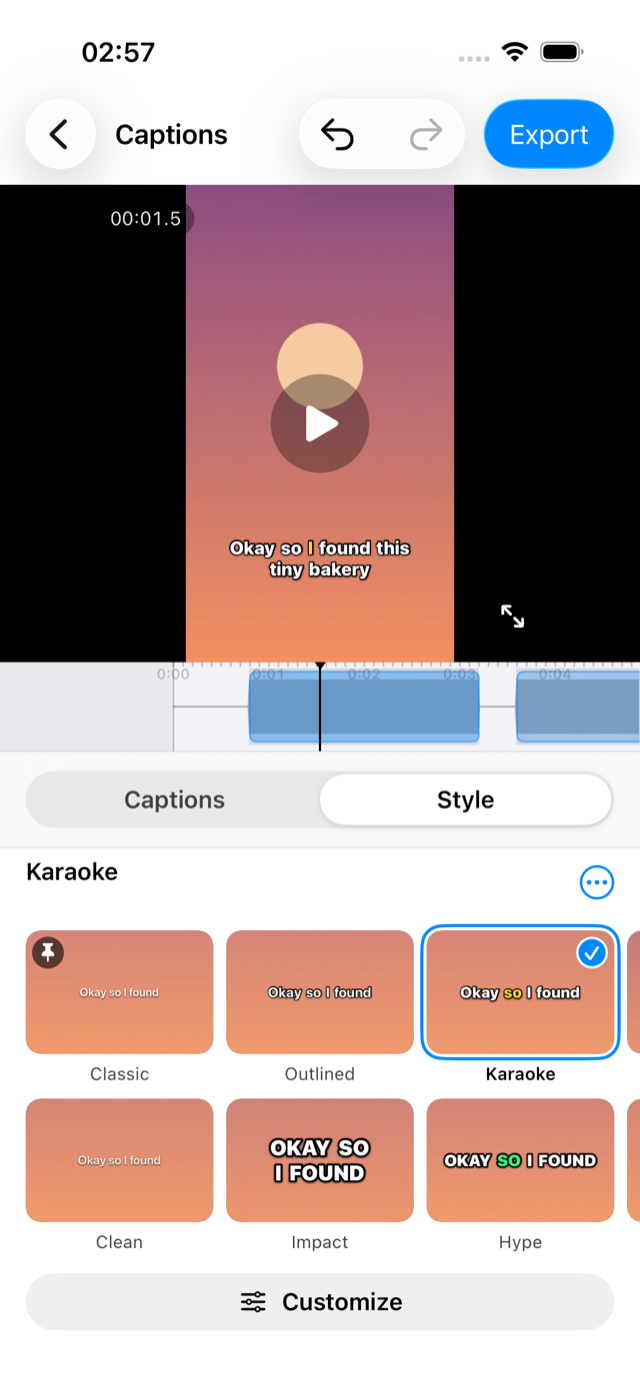
- Pick a look. Open Style and tap one of the twelve looks. The ones I'd start with for short video are further down.
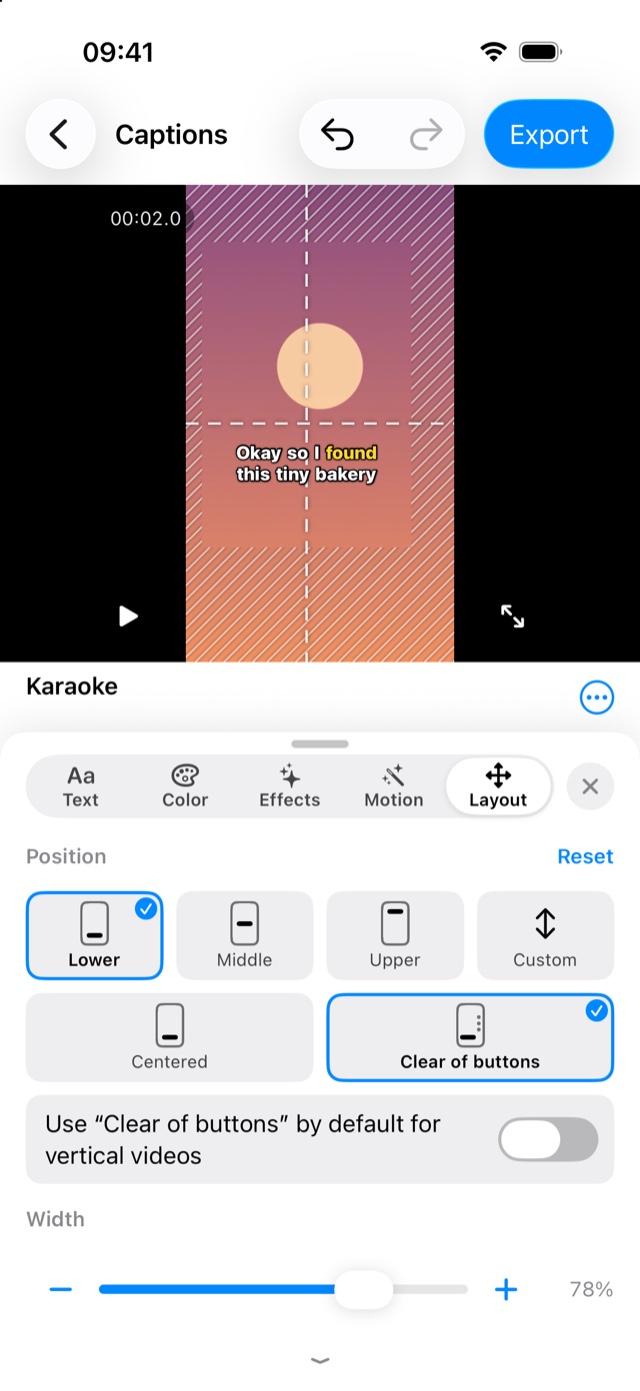
- Set the position and the lines. Tap Customize and open Layout. Under Position, pick Lower, Middle or Upper, then Clear of buttons. Under Lines, pick 1, 2 or 3.
- Watch it, then export. Swipe up on the video to watch it full screen with the captions. Then tap Export, Export video, and Save to Photos or Share… when it's done.
- Post it. In TikTok, Instagram or YouTube, start a new post and pick the video from your library. If the app offers to add its own auto-captions, skip that for this video, or viewers will see the words twice.
Staying clear of the buttons
On a vertical video, TikTok, Reels and Shorts lay their own controls over the picture: a column of buttons (like, comment, share) down the right side, and the account name and the post's text along the bottom. A caption centered low in the frame can end up underneath them.
On CapiCap's Layout page, Lower and Upper keep a margin of the frame clear at the bottom and top, where those apps put their own text and tabs, and Middle puts the caption in the center. Clear of buttons moves the caption's center line to 45% of the width, a little left of center and away from the buttons, so at the default width the caption fills the room they leave. Captions in a right-to-left language mirror to the other side. Centered puts them back in the middle.
With Layout open you can also drag the caption to any height, or sideways. While you drag, the editor hatches the edges where short-video apps tend to put their buttons and text, and the caption snaps to the middle and to the Clear of buttons line. The hatching is never exported.
If you post a lot of vertical video, turn on Use “Clear of buttons” by default for vertical videos, just under those choices. Every new video that's taller than it is wide then starts that way. Videos you've already captioned keep their position.
One caveat: each app draws its controls a little differently and changes them from time to time, so no position is guaranteed clear on every phone. Look at your first upload in the app, and move the captions if something covers them.
One line, two or three
New projects start at two lines per caption. One line suits fast clips: fewer words at a time, changing more often, easy to take in at a glance. Three suit slower talk, with more on screen at once.
CapiCap breaks captions at natural phrase boundaries, and it counts lines in the look's own font at your video's size, so a big, heavy look gets fewer words per caption than a slim one. Changing Lines splits the captions again. Words you corrected and captions you split or merged yourself stay as they are, and undo brings the old ones back. Chip and Cover, which show one word at a time, set their own lines. If a caption you typed is too long for the look, the caption list marks it Too long for this style and offers Split to fit.
Looks I'd start with
CapiCap has twelve looks. These are the ones I'd try first on a short video:
| Look | What it does |
|---|---|
| Karaoke | White heavy text with an outline; each word turns yellow as it's spoken. |
| Hype | Wide heavy capitals with a thick outline; the spoken word turns lime green. |
| Impact | Condensed extra-heavy capitals with a thick black outline and a hard shadow. Each word pops in, the newest one in yellow. |
| Pop | Rounded extra-heavy white with a black outline and a pink hard shadow; words pop in as they're spoken. |
| Outlined | Bold white with a black outline, words popping in, no color. |
| Chip | One word at a time on a red pill. |
| Glide | A blue box glides from word to word under white text. |
| Boxed | White text on a dark band, with a pale yellow marker under the spoken word. |
| Cover | One big word at a time, set behind the person. There's a separate page on how that works. |
The other three are Classic (plain white with a soft shadow), Editorial (a serif on a dark band) and Typewriter (dark type on a cream band). Every look is a starting point: under Customize you can change the font, weight, capitals, size, outline, colors, shadow, background and motion, including the color of the spoken word. Save as look keeps the result, and you can make it the default for new videos.
The export
Export video keeps the original resolution, frame rate and bitrate, 4K60 included, so a 9:16 clip stays 9:16 and nothing is downscaled. The sound is copied as it was. The one exception is HDR: those clips export as SDR (Rec. 709). There's no watermark.
It's one vertical file with the captions in the picture, so the same export works for TikTok, Reels and Shorts. CapiCap has no accounts and doesn't connect to any social app, so posting is up to you: Save to Photos and post from the app as usual, or tap Share… and pick the app if it's in your share sheet.
For a regular, horizontal YouTube video you might prefer captions that viewers can switch on and off. Export .srt gives you a subtitle file for that; I wrote up how to make one.
Limits and price
CapiCap captions the video you already have. It doesn't trim, add music or stitch clips together, and it doesn't post or schedule. It doesn't translate either: captions come out in the spoken language, which can be any of the 99+ it knows, detected automatically or picked under Language. It runs on Apple devices only. If you need a full editor, I'd use CapCut; here's how the two compare.
It's free to download, with 3 exports a month and every look included. A one-time purchase ($9.99 in the US, priced locally elsewhere) removes the limit. There's no subscription.