A subtitle file is what you want when the captions should stay separate from the picture: viewers can switch them on and off, and the platform or editor draws them. Typing one by hand means pausing the video every few seconds.
I make CapiCap, which writes the file for you. It transcribes the speech with OpenAI's Whisper model on your iPhone, iPad or Mac, so the video doesn't leave the device, and you correct the words before you export.
What an .srt file is
SRT, or SubRip, is the plainest subtitle format, and nearly everything accepts it. It's a text file that lists every caption with a number, a start time, an end time and the words. Two captions look like this:
1
00:00:00,800 --> 00:00:03,600
Okay so I found this bakery

2
00:00:03,600 --> 00:00:06,900
It's behind the flower marketThat's all there is to it. An .srt carries no fonts, colors or position, so whatever plays it decides how the captions look.
An .srt or burned-in captions
| .srt file | Burned-in captions | |
|---|---|---|
| What it is | A text file that travels next to the video | Words drawn into the picture itself |
| Viewers can turn them off | Yes | No, they're always there |
| How they look | Up to the player or platform | As you styled them |
| Fixing a typo later | Edit the file and upload it again | Export the video again |
| Used for | YouTube, Vimeo, video editors | Reels, TikTok, Shorts, Stories, messaging apps |
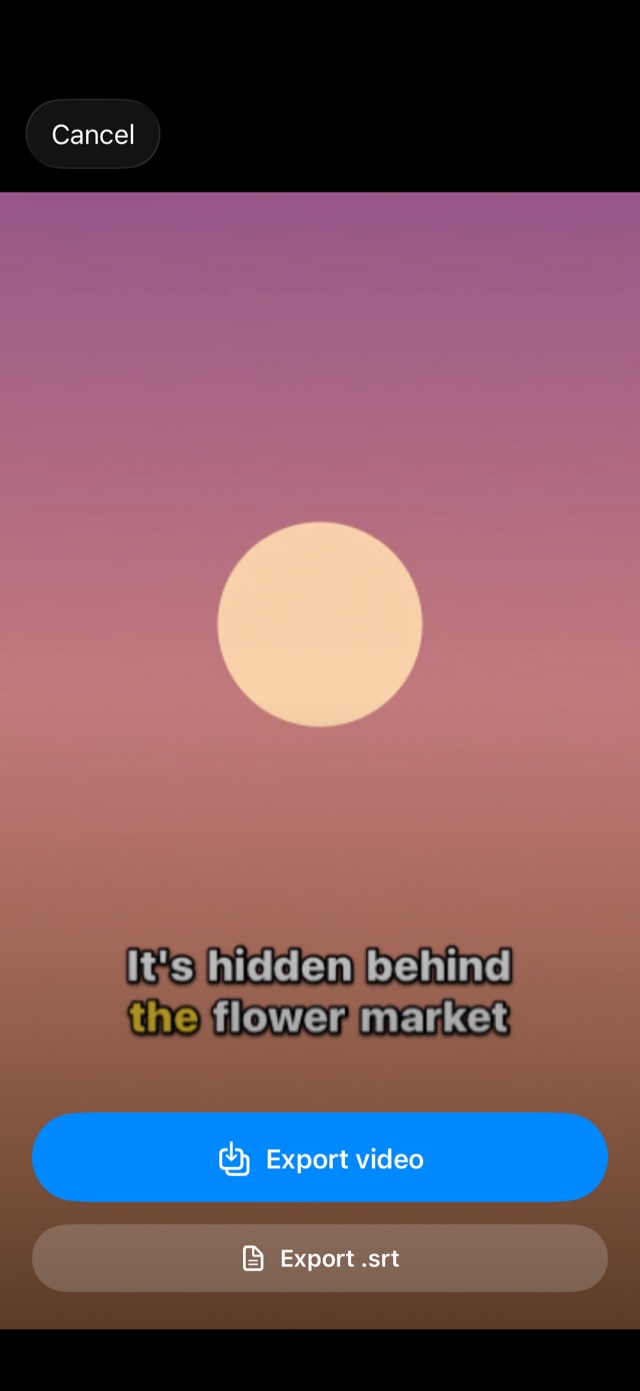
Short-video and messaging apps generally give you nowhere to attach a subtitle file, so there the words need to be in the picture. You don't have to pick one, though. On CapiCap's export screen Export .srt sits right under Export video, so one project gives you both. The burned-in kind is covered in adding subtitles to a video on iPhone.
Making one in CapiCap
- Install CapiCap and open it once while online. It's one app for iPhone, iPad and Mac. On first launch it downloads its speech model, one time. After that it works offline.
- Tap Choose Video. Pick a clip from Photo Library or Files, or share a video into CapiCap from another app.
- Let it transcribe. CapiCap detects the spoken language (it knows 99+) and writes the captions on the device. If it guesses wrong, tap the language under the captions and pick the right one.
- Fix the words and the timing. Each caption in the list becomes one numbered entry in the file. Tap a caption to correct it; split, merge, add or delete captions; drag a caption's edges on the strip under the video to move its timing. All of it goes into the .srt.
- Tap Export, then Export .srt. You don't need to render the video. The share sheet comes up, and on iPhone or iPad you can save the file to Files, AirDrop it to a Mac or send it straight to another app.
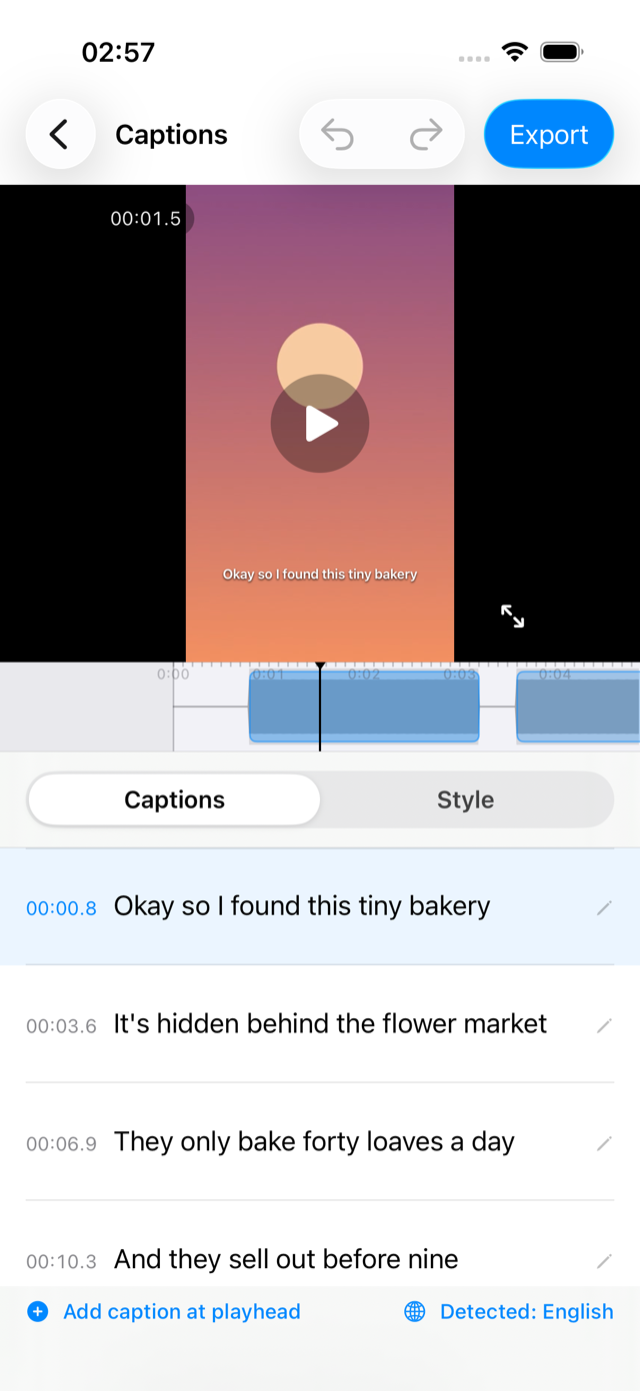
One thing to know before you export: in CapiCap the caption size, the font and the Lines setting (one, two or three lines per caption) decide how much text fits in each caption, so they also decide how the .srt is divided. Colors and shadows don't. Captions you split or merged by hand stay the way you made them.
What's in the file
One numbered entry per caption, in time order, with start and end times to the millisecond. The words and timing are the ones the editor had when you opened the export screen, corrections included. The file is named after the project.
The text is UTF-8, so accents and every script, from Arabic to Japanese, come through intact, and lines end with a plain line feed (Unix style). Fonts, colors and motion stay in the app, because an .srt can't carry them.
Where to use it
On YouTube, open the video's subtitles in YouTube Studio, add the language and upload the file with timing. Viewers get it behind the CC button. Vimeo accepts .srt files as subtitles or captions in a video's settings.
Final Cut Pro, Adobe Premiere Pro and DaVinci Resolve all import .srt files as captions or subtitles on the timeline, where you can adjust them further. And many desktop players, VLC among them, load an .srt that sits next to the video with the same file name.
What it costs
CapiCap is free to download and gives you 3 video exports every calendar month. An .srt on its own doesn't count as one of them. After a video export, saving it, sharing it and exporting its .srt are free as often as you like. Once the month's 3 video exports are used, Export .srt waits along with the video until the next month, unless you buy Lifetime access, a one-time purchase ($9.99 in the US, priced locally elsewhere) that removes the limit.
What it can't do
CapiCap writes .srt files only. It can't open an .srt you already have, because it makes its captions from the speech in the video, and it doesn't write .vtt. If a tool insists on WebVTT, the two formats are close: a .vtt file starts with a WEBVTT line and uses a dot instead of a comma before the milliseconds.
The captions are in the language that's spoken; CapiCap doesn't translate them, and it has no speaker labels. It's a captioning app rather than a video editor, and it runs on Apple devices only. Speech recognition also makes mistakes, more often with loud music, people talking over each other or heavy accents, which is why every caption can be edited before you export.