You know the look from magazine covers: the title sits behind the person, so their head and shoulders overlap the letters. In a video editor (After Effects on a computer, CapCut on a phone) you usually build it from layers: the video, the text over it, and on top a copy of the video with the person cut out. On a moving shot that cutout has to follow the person through the whole clip, and fixing it where it slips is slow work.
I make CapiCap, a captioning app, and it does this without layers. It finds the person itself on every frame that has a caption, using Apple's Vision framework on your device, and sets the caption behind them wherever the words stay readable. That last part is the catch, along with the fact that it only works for captions. More on both below.
How to do it
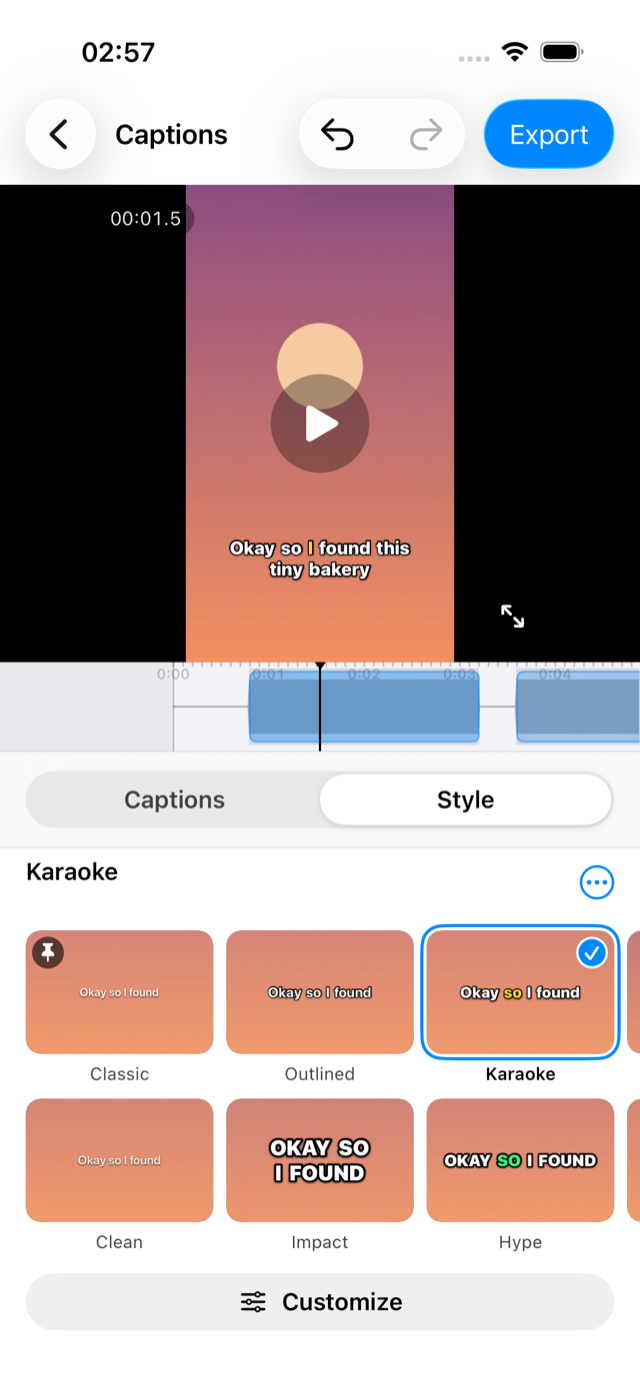
- Caption the video. Tap Choose Video and pick a clip from Photos or Files. CapiCap transcribes it on the device; fix any wrong words in the Captions tab. There's a separate guide to the whole captioning process.
- Pause on a typical frame. Tap the video to pause where the person is in their usual spot, head and shoulders in the picture. Placing the caption behind someone reads the paused frame.
- Open Style and tap Cover. Cover is the look made for this: one word at a time in big condensed capitals with a thin outline, with a small person badge on its tile. If the person would hide too much of the caption where it sits, CapiCap looks for a height that works and, if it finds one, moves the caption there. One undo takes back both the look and the move.
- Or place it yourself. If the caption sits clear of the person, nothing is hidden and nothing moves. Tap Customize, open Effects and, under Depth, tap Place behind the person. When the paused frame keeps the caption in front, the same thing is also a wand button beside the look's name. Other looks work too, once you pick Behind under Depth.
- Check a few frames, then export. Pause in a few places to see how it looks, then tap Export, Export video, and Save to Photos or Share… when it's done. The export finds the person on every captioned frame, so it takes longer than usual. Keep CapiCap open while it runs.
How it decides
For each frame with a caption on it, Vision finds the person and CapiCap looks at the word they cover most. If the person hides up to about a quarter of that word, the caption goes fully behind them. Past that it comes forward gradually, and once about 45% of a word would be hidden, it's drawn in front. So the effect isn't on all the time: it gives way wherever it would cost you a word. In looks where words arrive one at a time, such as Cover and Pop, it judges every word of the caption, not just the one on screen, so a caption moves back or forward with the person and never word by word.
Place behind the person tries heights from near the top of the frame to about 70% of the way down, and picks the one where the most-covered word is about 15% hidden: enough for the overlap to show, little enough to read every word. When no height works, it says "No height on this frame keeps the caption readable behind the person." With nobody in the frame, it asks you to pause where the person is in view.
The editor shows the effect on the paused frame only. While the video plays, or while you scrub or drag the caption, the caption is drawn in front. Pause, and you see that frame the way the export will draw it.
Where it works, and where it doesn't
It works best with one clear person against a background who stays roughly in one place: a talking head, a vlog, an interview. Put the caption over the head or shoulders, which is where the overlap reads like a magazine cover and where Place behind the person usually puts it. Big, heavy type helps. Cover's condensed capitals stay readable with part of a letter hidden, while small, thin captions get covered sooner and come forward more often.
It works less well when the person moves around. The caption's height is one for the whole video, found on the frame you paused on, so when the person walks away from it the caption ends up over the background, and when they'd cover too much of it, it comes forward. Fast movement can make the cutout less clean. With several people, or someone who blends into the background, the result is harder to predict, so check a few frames before you export. Frames with nobody in them keep the caption in front.
And it's for captions only. Behind is a caption style, and every caption in a video shares one style, so you can't put one title behind the person and keep the subtitles in front. You can type your own words into a caption, or add one with Add caption at playhead, but there's no separate title layer, and it doesn't do photos. CapiCap also doesn't trim, add music or join clips, and it runs on Apple devices only. For layered titles and graphics, a full editor is the better tool; I wrote about CapCut and CapiCap separately.
A related effect: Invert
Under Customize, then Color, the text color's Invert swatch draws the words as a negative of the video under them. It works on its own or together with Behind. It's weak over mid-gray, where the negative of gray is still gray, and the editor tells you when a paused frame is hard to read.
What you need
An iPhone or iPad with iOS 17 or later, or a Mac with Apple silicon, where CapiCap runs as the iPad app in a resizable window. Behind works on all three. On an iPad in landscape and on the Mac, the preview sits beside the whole transcript, which makes it easier to pause, check a frame and move on.
Cover and Behind aren't a paid extra. The free version has every look and 3 exports a month; a one-time purchase ($9.99 in the US, priced locally elsewhere) removes the limit.